You are looking at the default web page for LairdMirror3.
Quick start video with full explanations... click here.
If that link doesn't work, open an external browser and use this: https://youtu.be/UkeL_jv1bwo
You can, of course, hide this page using the "Hide/Show WebView" button, or you can tap the "Menu" button in the top-left corner and then put in the URL for your preferred web page. Remember to tap "Save" to save any changes.
Note: The WebView in this app is NOT a full-fledged web browser, so don't expect much. It is for viewing simple web pages, like this one. Very old Android devices may not show some web pages at all.
To get the documentation and help you can go to this link:
https://www.caveflyer.com/LairdMirror3/LairdMirror3-help.pdf
You can also tap the Menu button and look in the bottom left corner for the "Help" button. Clicking 'Help' will reveal a live link for the help PDF. If that fails, just copy the URL and paste it into an external browser.
It is highly recommended that your read the documentation.
Here is the Quick Start information:
Optionally, here is a quick start video: https://youtu.be/UkeL_jv1bwo
This section is for quick starters. If you get confused about where everything is, the help documentation is much more explicit with what is what, and what each feature does, with images and arrows and numbered objects, etc. If you prefer to read the documentation, I encourage you to print it or have it on a different device than the one you've loaded LairdMirror3 on.
Date and Time
If you''re anxious to get going, then after you install the program on your device, the time/date information should immediately start being displayed in the upper-half of the screen. If the date and/or time is wrong, check the device and make sure it's internal date and time are correct.
Weather Info
If you want the weather info, there is no real quick-start or shortcut. The weather portion of the screen will likely look like this when you first install this app.
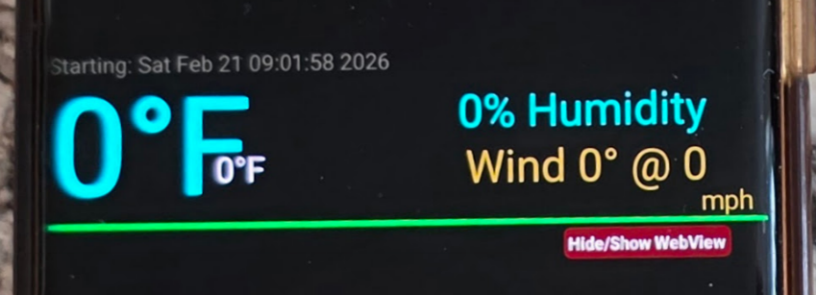 You have to go
through the 5-minute process of obtaining the OpenWeather API (AppID) key (see
below). Once you have
the AppID key, then tap "Menu" and then enter the key into the OpenWeather
AppID field and your US Zip code -- or, if international, use your latitude/longitude -- into their appropriate fields and
click 'Save'. At this point
(assuming it's been at least an hour since you were provided with a key), then
the weather data should also appear on the screen. Before the AppID is installed and active, you
may see a network or OpenWeather error pop-up, but just tap on the error pop-up it to make it go
away. When the AppID is activated, you
should not see that error unless you've lost your network connection, or in the
remote possibility that the OpenWeather network is down. (You may see it if you exceed the daily
OpenWeather limit, but since I've never done that, I don't know what to
expect.)
You have to go
through the 5-minute process of obtaining the OpenWeather API (AppID) key (see
below). Once you have
the AppID key, then tap "Menu" and then enter the key into the OpenWeather
AppID field and your US Zip code -- or, if international, use your latitude/longitude -- into their appropriate fields and
click 'Save'. At this point
(assuming it's been at least an hour since you were provided with a key), then
the weather data should also appear on the screen. Before the AppID is installed and active, you
may see a network or OpenWeather error pop-up, but just tap on the error pop-up it to make it go
away. When the AppID is activated, you
should not see that error unless you've lost your network connection, or in the
remote possibility that the OpenWeather network is down. (You may see it if you exceed the daily
OpenWeather limit, but since I've never done that, I don't know what to
expect.)
Web page display on the bottom half of the screen
If you have Internet access (necessary to acquire weather data), there is already a default web page assigned... this one! If you don't see it, then touch the "Hide/Show WebView" button to display it. If you don't want to see this, you can Hide it by again tapping the "Hide/Show WebView" button
If you want to have a web page of your choosing displayed in the bottom-half of the screen then tap the Menu button, then in the configuration screen, add the web page URL into the WebView URL field and tap 'Save' . That should get you going. If you previously hid the WebView area, then you'll have to tap the "Hide/Save WebView" button again. (The ability to render web pages in WebView is quite limited. Review the information in the help documentation to understand why. It's really just for simple, light-weight pages, like this one. Personally, I use it to keep aviation weather site available to me.)
OpenWeather API
To acquire data from the OpenWeather API, you need an API key (AppID). This key is free to acquire and as long as you don't do more than 1000 requests per day, they will not charge you. For a single device running LairdMirror3, and with the interval at the default of 900 seconds, that is 4 times per hour, times 24 hours = 96 requests. Even if you have 10 devices running at the default, you would still be below that limit. (I have 6 devices running LairdMirror3 at home and have never had a problem.) The 15-minute (900 second) interval is not arbitrary. The weather information provided by OpenWeather does not update more quickly than every 15 minutes, so there's little point in making that number smaller. I've set a lower limit to 60 seconds, but you should really leave it at 900 seconds (or longer). The upper limit is 86,400, the number of seconds in a day. OpenWeather may change the number of free calls per day at any time, so be aware of that potential issue. I've been running it for over 2 years without any problems
To obtain your own AppID (key), do the following (this may change, but was working in February 2026):
1. Create an Account: Sign up at
OpenWeather.
https://home.openweathermap.org/users/sign_up
2. After you submit that info, verify your email address by going to your email, find the email sent to you and click the email confirmation link.
3. Now, go find Your Key: go to your profile → 'My API keys'
4. Copy or Generate: Copy the default key or create a new one.
You can create more than one key, but they accumulate the total load from all of them, so no cheating!
Once you have a key, just run the LairdMirror3 app, touch Menu to open the configuration screen, then paste the key into the OpenWeather AppID field, and 'Save'. Note that the key may take 30 minutes or longer to become active, so don't be concerned if data doesn't show up right away. Oh, and, make sure you put in a proper ZIP code or lat/long, too!
If there is a network error (e.g., your device can't connect to the Internet), or if for whatever reason your API key doesn't work and/or data can't be retrieved from the OpenWeather servers, you should see a "network" error. If that happens, 1) make sure your device is communicating with the Internet; 2) make sure you typed in the API key correctly; 3) make sure the ZIP code or lat/long you used is valid. There may be other "fixes" that I haven't anticipated. Contact me with full info and I'll see what I can do: support@caveflyer.com.
Retrieving data from OpenWeather works with United States ZIP codes (5-digit only), as well as latitude/longitude.